
Images are everywhere – receipts, ID scans, screenshots, photos of documents – but they are hard to share and print as a set. Converting them to PDF solves that: one tidy, universal file that looks the same on every device. The challenge is doing it without losing quality. This guide covers the best methods to convert JPG to PDF online for free while keeping your images crisp.
Why convert JPG to PDF?
A PDF keeps multiple images in a fixed order, prints predictably, and is far easier to email than a folder of loose photos. PDFs also support passwords and compression, and most workplaces, schools and government portals ask for documents in PDF rather than JPG or PNG. Turning your images into a single PDF makes them look professional and keeps everything together.
What affects the quality of a JPG to PDF conversion?
- Source resolution – the sharper the original JPG, the sharper the PDF.
- Re-compression – good converters embed images without heavy recompression.
- Page size and fit – matching the page to the image avoids stretching or cropping.
- Orientation – portrait vs landscape should follow each image.
How to convert JPG to PDF online free
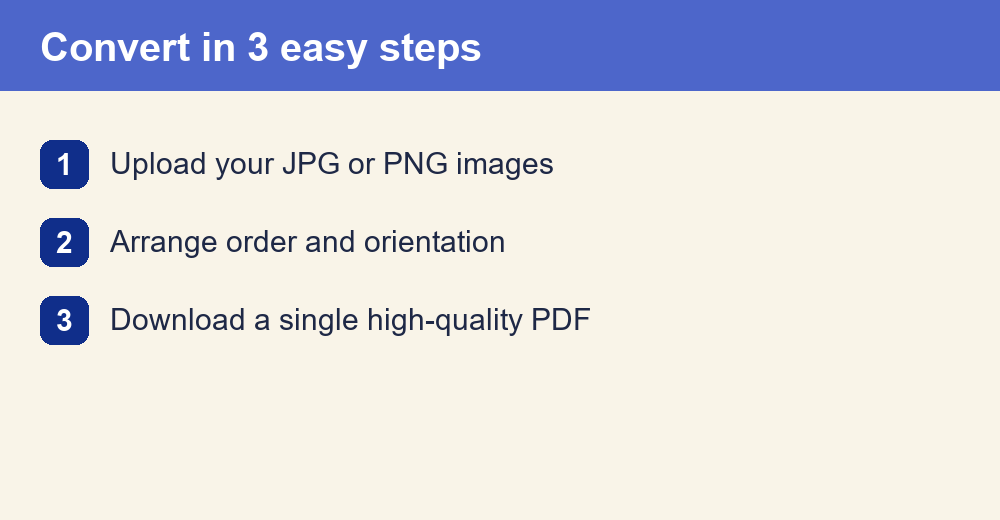
With YoursPDF you can do it in three quick steps, with no sign-up or software to install:
- Open the Image to PDF tool.
- Upload one or more JPG or PNG images and drag them into the order you want.
- Choose page size and orientation, then download your high-quality PDF.
All processing happens in your browser, so your photos never leave your device – ideal for personal documents and IDs.
Tips for the sharpest results
Start with the highest-resolution images you have and avoid screenshots of screenshots. Keep each image in its natural orientation so text stays upright, and select a page size (A4 or Letter) that matches your intended use. If you are combining many photos, add them in the right order before exporting so you do not have to reorganise later. Need to go the other way and pull images out of a PDF? Use the PDF to JPG converter, and to combine several finished PDFs try Merge PDF.
Common uses for JPG to PDF
Turning images into PDF is handy in everyday situations. Students submit scanned homework and handwritten notes as a single file; freelancers send photo portfolios that open the same way on any device; and everyone deals with receipts, ID cards and application forms that need to be uploaded as PDF. Bundling several photos into one ordered document looks far more professional than attaching loose images, and it keeps related pages together so nothing gets lost in an email thread or a messaging app.
Is it safe and free?
Yes on both counts. The conversion runs entirely in your browser, so images are never uploaded to a server or stored. There is no watermark, no account and no hidden limit – convert as many images as you need.
Frequently asked questions
Can I combine several JPGs into one PDF? Yes – upload all your images and they become a single multi-page PDF in the order you choose.
Does converting reduce image quality? No, the tool embeds your images without aggressive recompression, so they stay as sharp as the originals.
Does it work with PNG and other formats? Yes, PNG, BMP and WEBP images are supported alongside JPG.
Is there a file limit? No, the JPG to PDF converter is free with no watermark or file cap.
Turn your images into a PDF
Free, high-quality and private – everything happens in your browser.
Convert JPG to PDF Now